 RAZ BURG AUDIOCRAFTSBack to Chroma
Chroma User Guide
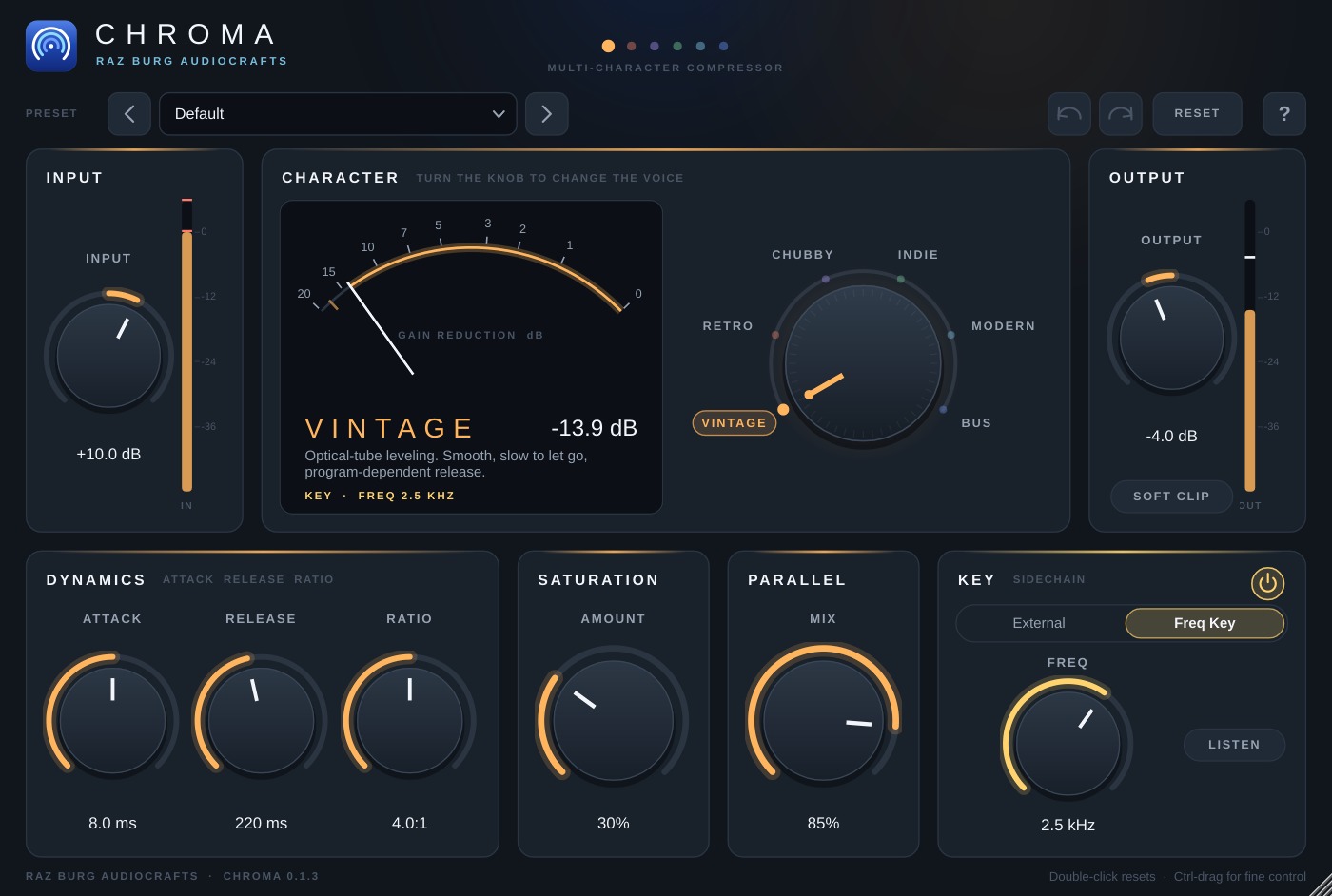
Chroma is a compressor with six characters by Raz Burg AudioCrafts. One knob changes the whole voice of the compressor: how it listens, how hard it bends in, how it lets go and how its saturation sounds. Input drives the signal into a fixed threshold, the way classic hardware works.
Quick start
- Chroma opens with no processing: Ratio 1:1, Input and Output at 0 dB, no Saturation, Soft Clip off. Your track passes through untouched.
- Turn up Ratio (try 4:1), then raise Input until the meter shows a few dB of gain reduction.
- Turn the Character knob to hear the six voices. Use Output to match the level.
- Pick a starting point from the preset menu in the toolbar, then adjust to taste.
- Undo and Redo step through your last 100 changes. Reset returns everything to the initial state (no processing).
Characters
- Vintage: optical-tube leveling. A soft knee, an averaging detector and a release that slows down the longer it works. Smooth on vocals and bass.
- Retro: fast transistor punch. Peak detection with a firm knee and very fast attack times. Its saturation grows as it compresses harder. Bright and forward.
- Chubby: variable-tube thickness. A very wide knee, so it is gentle at first and gets firmer the harder you push. Rich, thick saturation. Great on masters and groups.
- Indie: raw and gritty. A hard knee and gritty saturation. Past 10:1 it over-compresses: the louder the input, the quieter the output, for pumping and inside-out effects.
- Modern: clean and precise. Controls dynamics without adding color; its saturation is the most transparent.
- Bus: mix-bus glue. A dual release that recovers fast after short peaks and holds back after long passages. Made for the mix bus, groups and mastering.
Controls
- Character: the large knob in the centre. Drag it, scroll it, or click a name. The whole interface takes on the character's color.
- Input: drives the signal into the compressor. More Input means more compression.
- Output: level of the processed signal (make-up gain).
- Attack: how fast the compressor grabs (0.05 ms to 200 ms). Each character has its own fastest attack.
- Release: how fast it lets go (20 ms to 3 s).
- Ratio: how hard it compresses, from 1:1 (no compression) to 20:1.
- Saturation (Amount): harmonic saturation in the voice of the current character. At 0% it is off. It colors the whole output after the Parallel blend, so it sounds the same at any Parallel setting.
- Parallel (Mix): blends the untouched source (0%) with the compressed signal (100%) for parallel compression. It only sets how much compression you hear and does not change the Saturation.
- Soft Clip: a soft clipper on the final output that rounds off peaks above about -4 dBFS and keeps them below 0 dBFS.
Key (sidechain)
- Key: switches the key on. When it is off, the compressor listens to the track itself.
- External: the compressor listens to the host's sidechain input. In Pro Tools pick a bus in the Key Input menu at the top of the plugin window; in Cubase activate the side-chain button and route a send to it. If nothing is routed, Chroma uses the track and says so on the meter.
- Freq Key: the compressor listens only to one frequency band of the track, set with Freq from 50 Hz to 16 kHz. Use it to tame sibilance around 5 to 8 kHz or a harsh resonance.
- Listen: hear exactly what triggers the compressor, to find the right frequency or check the sidechain.
Meters
- Gain reduction: the needle shows how many dB the compressor is taking off, with a short peak marker.
- In / Out: peak levels going into the compressor (after Input) and leaving the plugin.
Tips
- Vocals: Vintage or Retro, 3:1 to 4:1, 3 to 6 dB of reduction.
- Drums: Retro or Indie with Parallel around 30 to 50% for weight without losing the transients.
- Mix bus: Bus at 2:1 to 4:1, slow attack (10 to 30 ms), 1 to 3 dB of reduction.
- Sibilance: Modern, Key on, Freq Key at 6 to 7 kHz, fast attack and release.
Licence
- Chroma is free. Create a free account at audiocrafts.razburg.com and add Chroma to My plugins to get the installers.
- Activation: the first time you open Chroma, click Activate and sign in to your AudioCrafts account in the browser window that opens. You can activate Chroma on up to 2 computers. To move it to another computer, remove the old one under My plugins.
Updates
When you open Chroma, it quietly checks audiocrafts.razburg.com for a newer version. If there is one, a small notice appears at the bottom right of the window. Click Download to open My plugins in your browser, or click the x to hide the notice until the next release. The check never affects the sound, and nothing appears when you are offline.